When you give a Doro phone to a loved one, the first concrete request often comes within the hour: sending a text message. The simplified interface of these devices is designed for that, but a few details need to be addressed even before opening the keyboard. The exact model of the Doro phone, its network compatibility, and how the keyboard handles input radically change the experience.
Check the Doro’s network compatibility before writing a text message
We rarely think about the network when talking about text messages. Sending a text message goes through the mobile network, and not all Doro phones are treated equally in light of the gradual shutdown of 2G and 3G in France, announced between 2026 and 2029.
A Doro that is only 2G will lose its connectivity when the operator shuts down the network. 3G models have a reprieve, but not a long-term guarantee. Identifying the exact model is the first step, before any manipulation of the keyboard.
The mention of “4G” on the product sheet is not enough either. Some devices use 4G for data while reverting to 2G or 3G for voice. The continuity of service depends on VoLTE (voice over 4G) compatibility with the operator.
According to JeChange, the Doro 6620 (launched in 2019) remains a 3G model, while the Doro 6820 (commercialized in 2022) supports 4G with VoLTE. A simple name resemblance does not allow for deducing compatibility.
To find the information, turn the phone over: the reference is located under the battery or in the Settings menu > About phone. Then cross-reference this reference with your operator’s compatibility list. If the model does not appear, it’s better to inquire in-store before configuring anything. The writing of SMS on a Doro phone assumes that the device can indeed communicate with the network.
Text input on the Doro keyboard: keys and T9 method
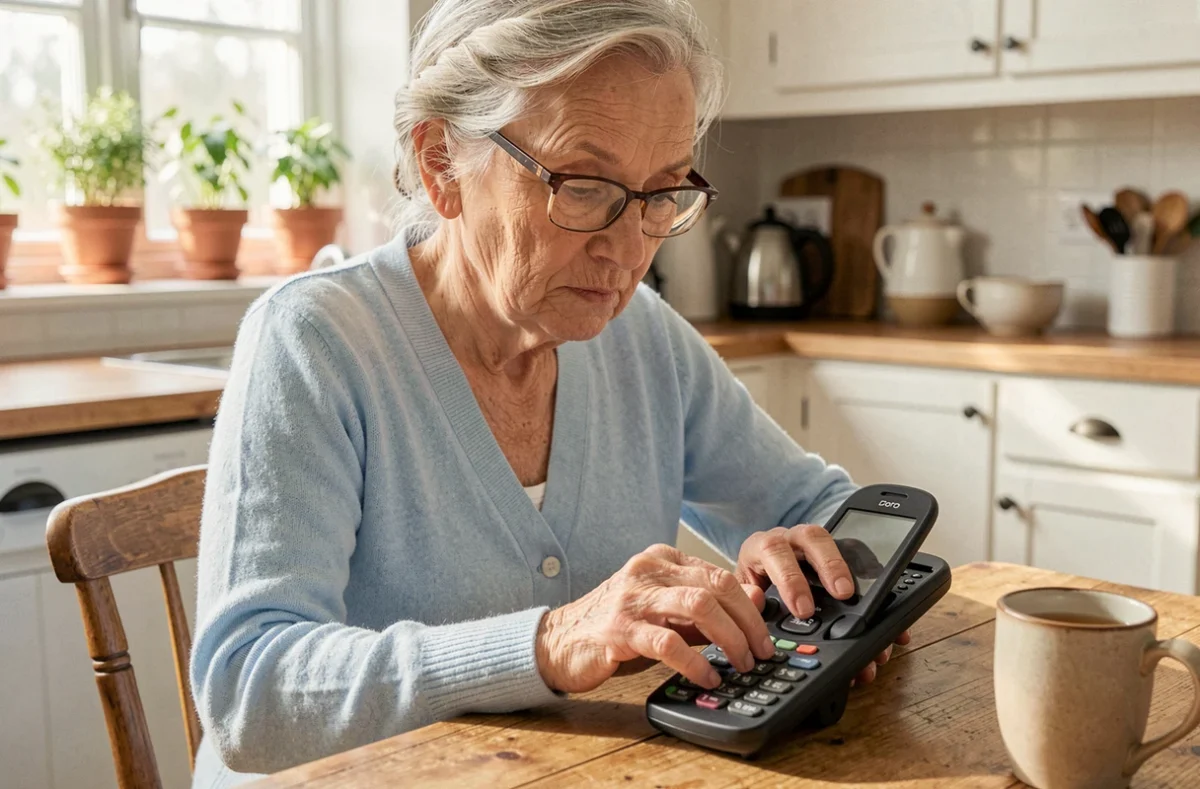
On a clamshell or physical-key Doro (Doro 6520, 6820, 1880), input works like on phones from the 2000s. Each numeric key corresponds to several letters. You press once, twice, or three times to select the desired letter.
Accessing message writing
The procedure remains stable from one model to another:
- Press the Menu key, then select Messages (or SMS depending on the model), then New message or Write a message.
- Enter the recipient’s number in the “To” field, or press the contextual key to open the directory and choose a contact.
- Scroll down in the text field with the down navigation key, then start typing the message.
On some Doro models like the 6520, a message shortcut is assigned to a physical key (often marked with an envelope icon). A direct press opens the inbox, and the contextual key allows creating a new SMS without going through the menu.
Choosing between classic input and predictive input
The star (*) or hash (#) key allows switching between input modes. The “Abc” (multi-press) mode requires pressing each key multiple times. The “T9” or predictive mode suggests words as you type.
The T9 significantly reduces the number of presses needed. To type “hello,” you press once on each corresponding key, and the phone suggests the word. If the displayed word is not correct, the side navigation key scrolls through alternatives.
Feedback varies on this point: some users find T9 confusing and prefer multi-press, which is slower but more predictable. It is recommended to test both modes before making a final choice.
Accents, punctuation, and special characters on a Doro phone
This is often where things get tricky. Accents and punctuation are not always visible at first glance on a key-based keyboard.
For accents, you need to hold down the key of the concerned letter a little longer or press several times beyond the basic letters. On key 2 (A, B, C), additional presses display à, â, ä, æ successively depending on the model. Punctuation is generally found on key 1: period, comma, question mark, exclamation point cycle with each press.
To insert a space between two words, use the 0 key. A quick press on 0 produces a space, while a long press displays the number 0.
Common mistakes and practical solutions for Doro SMS
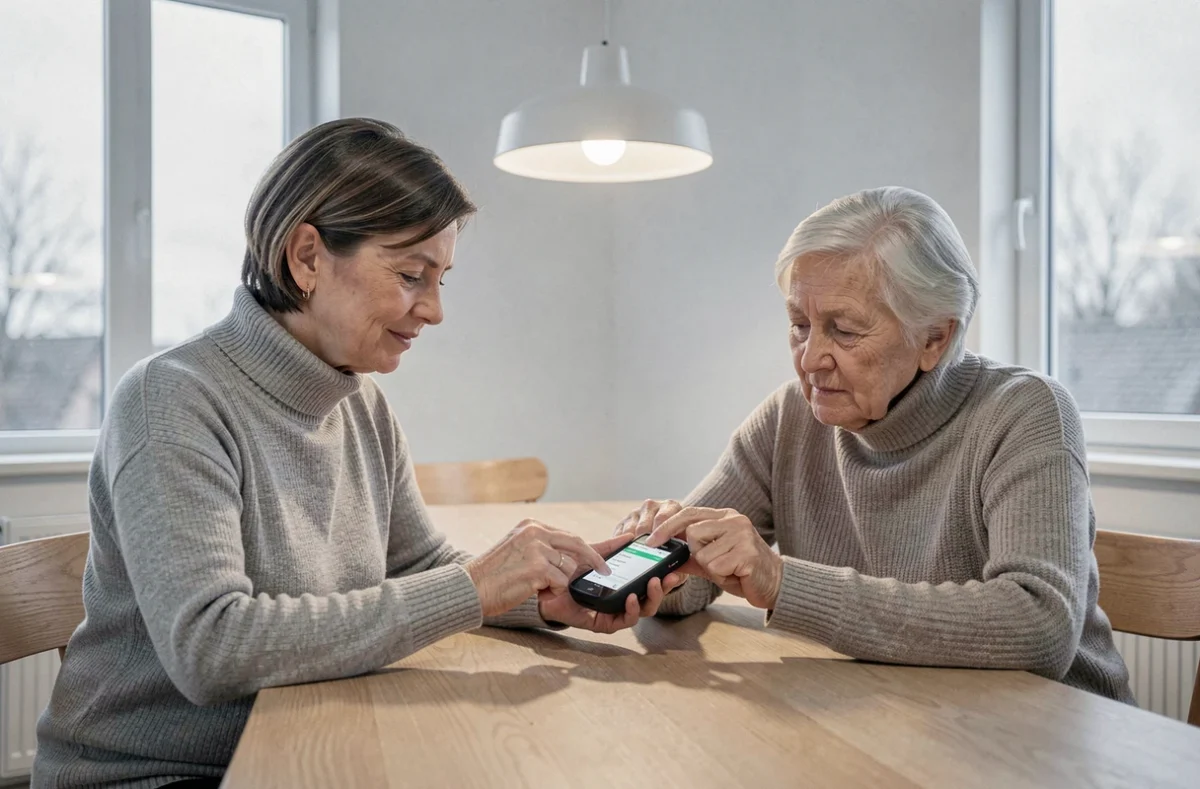
Several situations regularly arise when assisting a Doro phone user with their first text messages.
- The message does not send: check that the message center number (SMSC) is correctly configured. You can find it in Messages > Settings > Message center. Each operator has its own number, available on its support site.
- The text is unintentionally deleted: on Doro keyboards, the “Delete” key (C or back arrow) is close to the navigation keys. A long press deletes the entire message. It’s better to make short presses and check before each send.
- The SMS arrives split into several parts for the recipient: beyond a certain length (about 160 characters in standard input), the message splits. Special characters and accents reduce this limit. You can shorten the text or accept the splitting, which remains transparent to the recipient.
One last practical point: the font size on the screen can be adjusted in Settings > Display. Increasing the font size makes it easier to review before sending, especially for slightly longer messages.
With a compatible network and a few pointers on the keyboard, sending a text message on a Doro takes no more than thirty seconds. The most useful thing is to practice with a short message to a loved one, in a quiet place, without time pressure.